
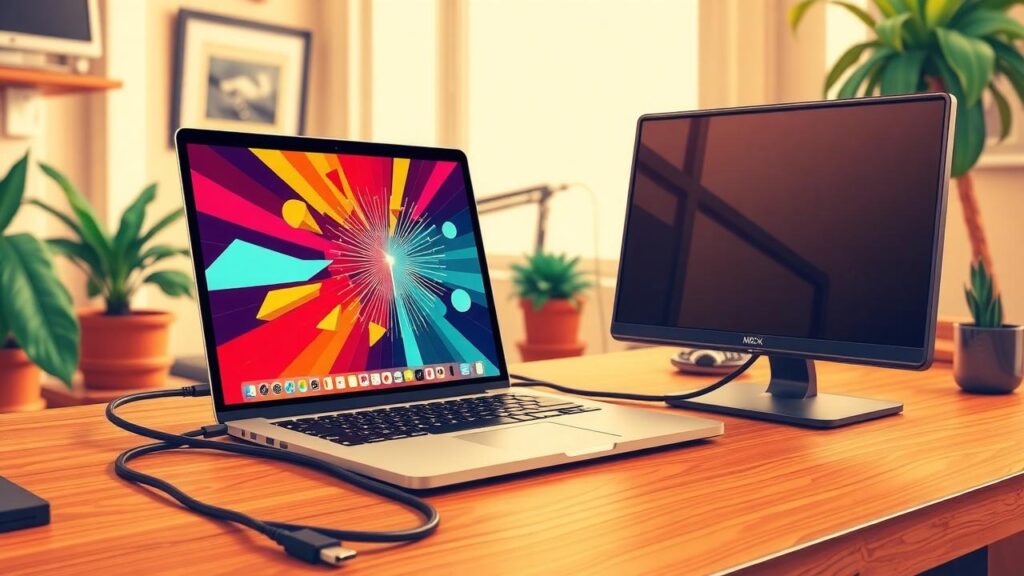
If your MacBook isn’t picking up the external display, don’t panic, there are several practical steps to try. First, check the connections; ensure the monitor is on and cables are secure. If you’re using USB-C, confirm it’s a Thunderbolt cable and inspect it for any damage. Next, make sure your monitor is set to the correct input source like HDMI or DisplayPort. You can also use macOS settings to force detection by holding down the Option key while clicking “Detect Displays.” If those steps don’t resolve it, power cycle both devices or restart your MacBook. Often these simple solutions will work!
Table of Contents
- Test on Another Device
- Check Display Settings
- Common Reasons for Detection Issues
- Additional Insights
- Frequently Asked Questions
11. Test on Another Device
If your external display still isn’t detected on your MacBook, it’s a good idea to test it on another device. Start by connecting the monitor to a different Mac or PC. This will help you determine if the issue is with the monitor itself. If the monitor works fine on another device, the problem may lie with your MacBook.
Next, consider using a different cable. Sometimes, a faulty cable can cause connection issues. Try switching from HDMI to DisplayPort, or vice versa, if your monitor supports multiple connection types. You can also connect the monitor to a smartphone or tablet using the appropriate adapter, which can provide further insight into the problem.
Additionally, test the monitor with a different power outlet. Sometimes, power supply issues can affect performance. Ensure that the monitor’s firmware is up to date on the alternate device, as outdated firmware can lead to compatibility issues. While testing, check the display settings on the alternate device to confirm compatibility. Look for any error messages or indications of problems. If the external display works on another device, it suggests that the problem may indeed be with your MacBook.
12. Check Display Settings
Go to System Settings > Displays to see if your external display is detected. If it is, you can adjust the arrangement of your displays to match how they are physically set up. Choose whether the external display should mirror your MacBook’s screen or extend your desktop as needed. Check the scaling options to ensure the display looks as expected. Make sure to select the correct resolution that matches your external display’s specifications to avoid any display issues. Also, review the refresh rate setting to ensure it is compatible with your monitor. If colors seem off, look at the color profile settings to optimize the display. If you have accessibility settings enabled that relate to the display, consider turning them off if they are not needed. Additionally, check for any third-party display management software that could be interfering with your settings. After making any changes, confirm that your settings are saved and applied properly.
- Go to System Settings > Displays and verify that the external display is detected.
- Adjust the arrangement of displays to match your physical setup.
- Make sure the external display is set to mirror or extend the desktop as needed.
- Check for any display scaling options that may affect how the screen is shown.
- Select the correct resolution that matches your external display’s specifications.
- Review the refresh rate setting to ensure it’s compatible with the monitor.
- Look for any color profile settings that may need adjustment for optimal display.
- Ensure that any accessibility settings related to display are turned off if not needed.
- Check for any third-party display management software that could interfere with settings.
- Confirm that the settings are saved and applied after making changes.
Common Reasons for Detection Issues
There are several common reasons why your MacBook might not detect an external display. One frequent issue is incompatibility between the MacBook and the monitor. This can happen if the monitor uses a different resolution or refresh rate that the MacBook cannot support. Additionally, using the wrong type of cable or adapter can lead to connection failures; for instance, not all USB-C cables support video output.
Another possibility is that the external monitor’s settings are not configured properly. Sometimes the input source may not be set correctly, causing the MacBook to fail to recognize it.
Outdated macOS can also create compatibility issues with external displays. Keeping your system up to date is crucial for ensuring seamless connectivity. Hardware damage is another factor to consider; if either the MacBook or the monitor has been physically damaged, it could result in detection problems.
Interference from other peripherals connected to your MacBook can also be a culprit. For example, if you have multiple devices plugged in, they might compete for resources. Furthermore, issues with the display or HDMI ports on your MacBook, or faulty graphics drivers, can lead to detection failures. Lastly, power supply issues, such as the monitor not receiving adequate power, can prevent it from functioning properly.
| Issue | Description |
|---|---|
| Incompatibility | Incompatibility between the MacBook and the external monitor. |
| Cable Issues | Using the wrong cable or adapter type. |
| Monitor Settings | Settings on the external display not configured properly. |
| Outdated macOS | Outdated macOS can cause compatibility issues with displays. |
| Hardware Damage | Hardware damage on either the MacBook or monitor could lead to detection failures. |
| Peripheral Interference | Interference from other peripherals connected to the MacBook. |
| Port Problems | Problems with the display port or HDMI port on the MacBook. |
| Graphics Drivers | Faulty graphics drivers that need updating or repair. |
| Monitor Issues | Issues with the monitor’s settings or internal components. |
| Power Supply | Power supply issues causing the external display to not function. |
Additional Insights
Sometimes, macOS does not automatically detect external displays, particularly if they are powered on after your MacBook. This can be frustrating, but there are ways to address it. By holding down the Option key in the display settings, you can access additional options that may assist in troubleshooting. Some older monitors require specific drivers or updates that may not be available for macOS, so checking the manufacturer’s website can be helpful. If you encounter display flickering or artifacts, adjusting the refresh rate could resolve the issue. Additionally, using the native resolution of the external display is recommended, as different resolutions may lead to detection problems. Keep in mind that some external displays have settings that might override those on your Mac; referring to the monitor’s manual for guidance can be beneficial. Also, verify that your applications are compatible with external displays, as some may not support them adequately. When using multiple external displays, it is often easier to troubleshoot by connecting them one at a time. Lastly, check your MacBook’s energy settings, as they might impact display performance. Reviewing the technical specifications of your monitor can also help ensure compatibility with macOS.
Frequently Asked Questions
Why is my MacBook not recognizing my external display?
There could be several reasons, such as a faulty cable, incompatible display settings, or an outdated macOS.
How can I check if the cable is working properly?
You can try using a different cable or testing the current cable with another device to see if it’s functioning.
What settings should I look at if my external display is not detected?
Go to System Preferences, then Displays, and click on the ‘Detect Displays’ button to refresh the connection.
Could my MacBook’s software be causing the issue?
Yes, if your macOS is outdated, it may not support newer displays, so it’s good to check for updates.
What steps can I take to reset my MacBook’s display settings?
You can reset the NVRAM/PRAM and the SMC, which may help in resolving display detection issues.
TL;DR If your MacBook fails to detect an external display, check the connections and select the correct input on the monitor. Try forcing detection from System Settings, power cycle the monitor, or restart your Mac. Resetting NVRAM/PRAM or SMC may help. Ensure macOS is up to date and test using different cables or adapters. If the issue persists, try the monitor on another device. Common causes include incompatible cables, faulty hardware, or software conflicts.